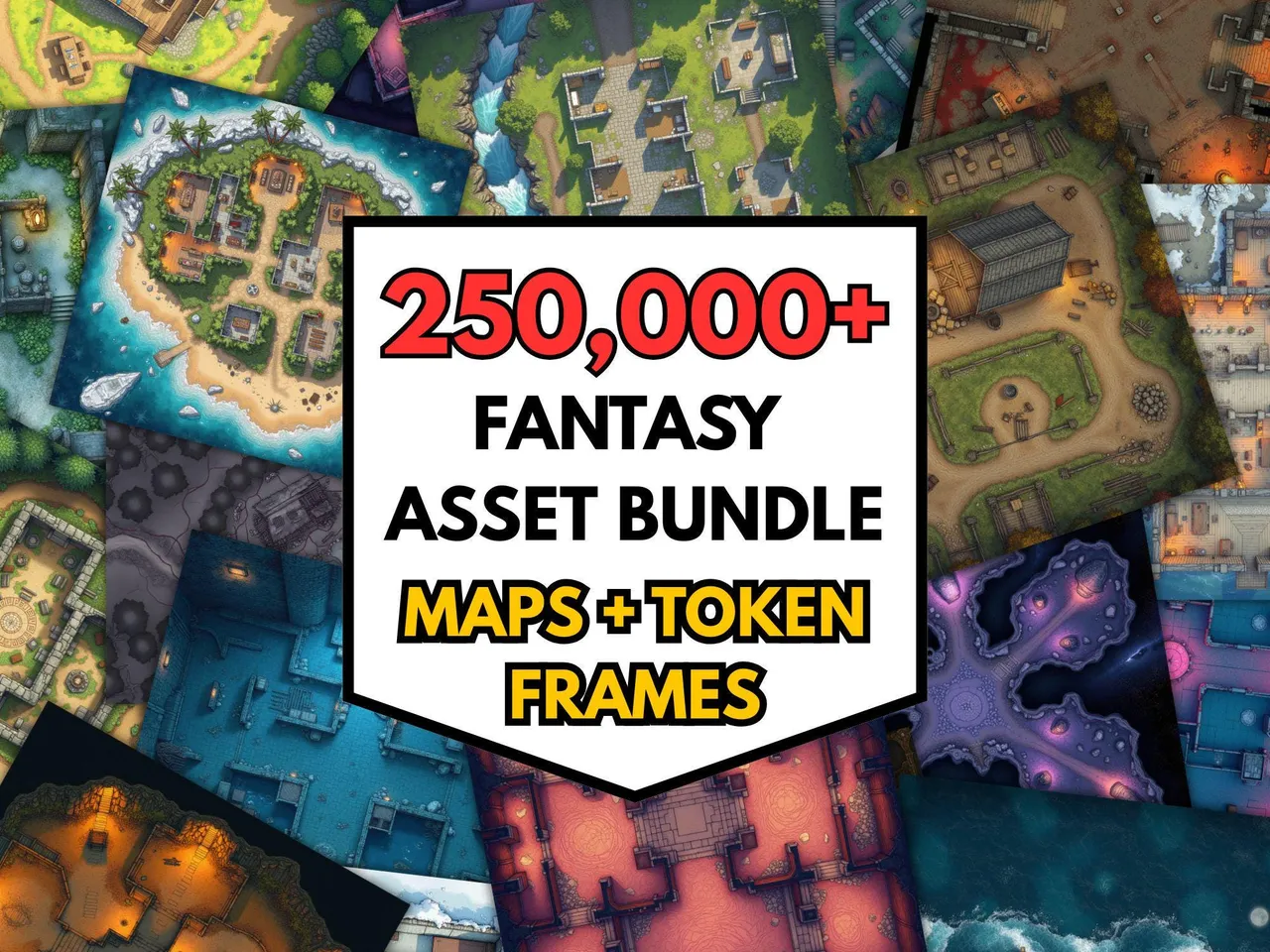
The two reasons you ever want to split a map are mechanical, not aesthetic. Either the map is too large to print on one sheet, or it is too large to load comfortably into a virtual tabletop. Both problems have the same shape: take one big image, cut it into evenly-sized tiles, and let the user reassemble the pieces in their preferred medium.
Printing across A4 or US Letter sheets
A standard battlemap intended for the table is around 24 by 36 inches. No home printer handles that on a single sheet. A 3 × 2 split at A4 gets you 6 sheets that, taped together, make a poster-sized map. Add a small overlap (20 to 40 pixels) so you have margin to glue or tape over the cut, then trim the white edge of every sheet before assembly.
Splitting for VTT scenes
Some VTTs, especially older Roll20 sessions, struggle with very large background images. Splitting a 8000 × 6000 dungeon into a 4 × 3 grid of smaller scenes loads faster and lets the DM teleport players between scenes as the party moves. Use 0 overlap and name the tiles by row/column so transitions stay coherent.
Picking the grid
The chip presets cover the common cases. Use the columns and rows sliders for irregular splits. For example, a long corridor map probably wants 4 × 1 rather than 2 × 2. The preview shows the cut lines overlaid on your image so you can see exactly where the splits will fall before downloading.
Privacy and limits
The image is loaded into a local canvas and split entirely in the browser. No upload happens, and nothing is stored after you close the tab. The practical limit is around 8000 × 8000 pixels, which is the standard browser canvas cap. For larger sources, scale down first or run two passes.